
17 KiB
pfQuest-HDB
pfQuest-HDB is the HearthDB edition of pfQuest for World of Warcraft 1.12. It keeps pfQuest's maps, quest tracker, journal, database browser, gathering tracking, and command interface while moving the large gameplay database out of Lua and into SQLite.
This is an early English-only alpha. It is intended for testing with a client that has HearthDB support installed. The regular pfQuest addon does not need HearthDB; use the live pfQuest project if you want the established Lua-database release.
Why an HDB edition?
Regular pfQuest loads its complete data set as Lua during login. This edition keeps only the small tables needed for map presentation in Lua and requests quests, units, objects, items, spawns, and search results from SQLite as they are needed. Queries are asynchronous so database work does not freeze a frame.
The first request for some data may appear a moment later while HearthDB returns it. Results are cached for the rest of the session. Quest acceptance, objective updates, map pins, minimap pins, the journal, browser searches, tooltips, and gathering routes have all been adapted to that model.
Alpha scope
- Vanilla 1.12 client
- English (
enUS) data and matching only - Vanilla content database
- HearthDB required
- Version
0.1.0-alpha.1
Other locales can use the same provider interface and database schema, but their database packages are planned for a later testing round.
Install
Download the ready-to-install ZIP from the Releases page. A complete installation has two addon folders:
Interface/AddOns/pfQuest
Interface/AddOns/pfQuest-HearthDB
The provider folder must contain the packaged database at:
pfQuest-HearthDB/data/pfquest.sqlite
Install the compatible HearthDB client component, copy both addon folders into
Interface/AddOns, and restart the game. Do not install regular pfQuest beside
pfQuest-HDB because both editions use the pfQuest addon folder and saved
variable names.
Run /pfqhdb in game to see whether the provider and database opened correctly.
Run /pfqhdb cacheclear to clear the provider's session caches while testing.
Reporting alpha bugs
Please include:
- what you clicked or which quest you accepted
- the quest, unit, object, or item name
- the zone and whether the problem was on the world map, minimap, tracker, or browser
- whether it happens again after
/reload - the full Lua error, if one appeared
For a delay or frame hitch, mention whether it happened only on the first lookup or on every attempt. That distinction helps separate an uncached database query from repeated UI work.
Building the English database
The provider source and build tool are included under provider/. Generated
SQLite files are release artifacts and are intentionally excluded from Git.
cd provider
python3 tools/build_database.py \
  --source /path/to/pfQuest-HDB \
  --locales enUS \
  --output data/pfquest.sqlite
sqlite3 data/pfquest.sqlite 'PRAGMA integrity_check;'
See HDB.md and provider/README.md for the package layout and provider details.
About pfQuest
The sections below describe the original pfQuest interface retained by this edition.
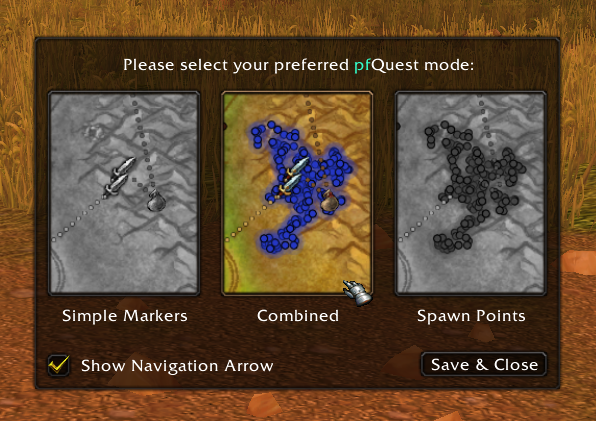
pfQuest is a quest helper and database browser for World of Warcraft Vanilla (1.12), The Burning Crusade (2.4.3), and Wrath of the Lich King (3.3.5a). Accept a quest and the relevant NPCs, monsters, and objects are automatically pinned on your world map and minimap. Open the database browser to look up any unit, item, or game object in the game — or use the chat commands to build macros for tracking gathering nodes.
The goal is to provide an accurate in-game equivalent of AoWoW or Wowhead, not a quest guide or turn-by-turn assistant. The Vanilla database is powered by VMaNGOS. The Burning Crusade version uses data from CMaNGOS with translations from MaNGOS Extras.
pfQuest is the successor of ShaguQuest, written from scratch with no dependency on any specific map or questlog addon. It is designed to work alongside the default UI and any other addon. If you run into a conflict, please open an issue on the bugtracker.
You can check the Latest Changes page to see what has changed recently.
Before You Install
pfQuest ships a complete database of all spawns, objects, items, and quests. The full package is approximately 80 MB and is loaded into memory once at login — memory usage is stable after that and does not grow during play.
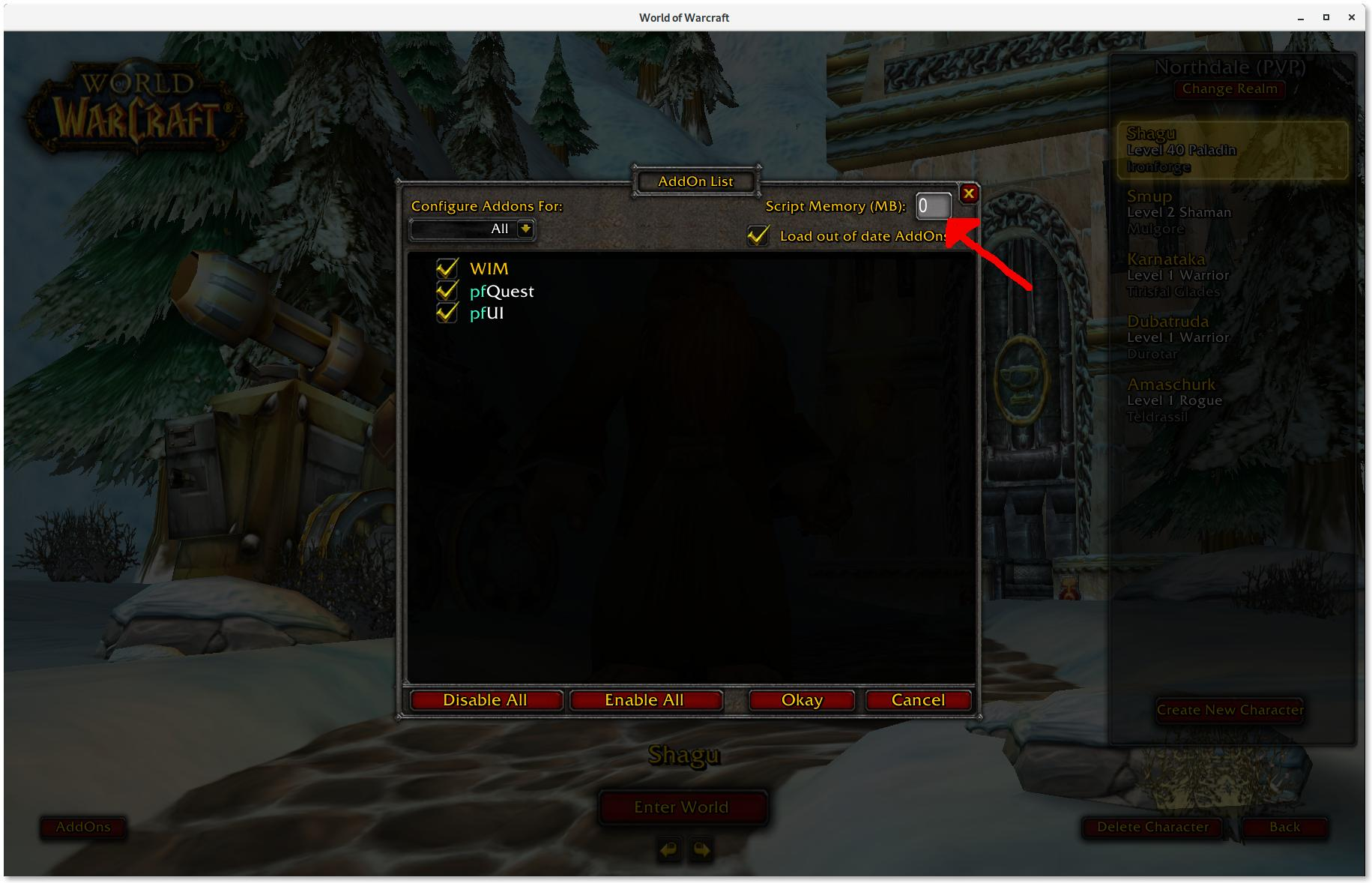
On Vanilla clients, WoW will show a warning if an addon exceeds the default memory limit. Before installing, set Script Memory to 0 (no limit) in the AddOns panel of the character selection screen. This is a one-time step. A screenshot showing where to find the setting is available if you are unsure where to look.
Downloads
World of Warcraft: Vanilla
- Download pfQuest (full)
- Unpack the zip file
- Move the
pfQuestfolder intoWow-Directory\Interface\AddOns - Restart WoW
Slim packages (single language): English · German · French · Spanish · Korean · Chinese · Russian
World of Warcraft: The Burning Crusade
- Download pfQuest (full)
- Unpack the zip file
- Move the
pfQuest-tbcfolder intoWow-Directory\Interface\AddOns - Restart WoW
Slim packages (single language): English · German · French · Spanish · Korean · Chinese · Russian
World of Warcraft: Wrath of the Lich King
Important
This is a BETA version of pfQuest
It is able to run on a WotLK (3.3.5a) client, but does not yet ship a WotLK database. All available content is limited to Vanilla & TBC as of now.
- Download pfQuest (full)
- Unpack the zip file
- Move the
pfQuest-wotlkfolder intoWow-Directory\Interface\AddOns - Restart WoW
Slim packages (single language): English · German · French · Spanish · Korean · Chinese · Russian
Development Version
The development version includes databases for all languages and all client expansions in a single folder. It will work in both Vanilla and TBC mode depending on the folder name. Due to the amount of included data, expect higher RAM and disk usage and slightly longer load times compared to the release packages.
- Clone via Git:
https://github.com/The-Kludge-Bureau/pfQuest.git - Download as zip: master.zip
Controls
Nodes on the world map can be clicked to cycle through display colors, making it easy to mark progress visually.
When multiple spawn points are close together they are grouped into a single cluster icon to reduce clutter. Holding <ctrl> on the world map temporarily breaks clusters apart so you can see individual locations. Hovering the minimap and holding <ctrl> hides minimap nodes entirely.
| Action | Result |
|---|---|
| Click a node on the world map | Cycle node color |
| <Shift>-click a quest giver on the world map | Remove completed quest from the map |
| Hold <Ctrl> on the world map | Temporarily expand clusters / hide them |
| Hover minimap + hold <Ctrl> | Temporarily hide all minimap nodes |
| <Shift>-drag the minimap button | Move the minimap button |
| <Shift>-drag the arrow frame | Move the quest arrow |
Map & Minimap Nodes
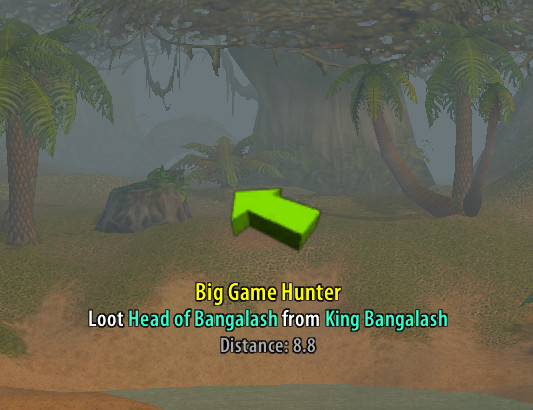
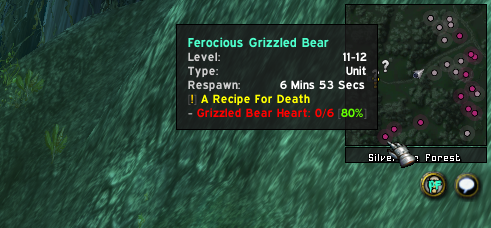
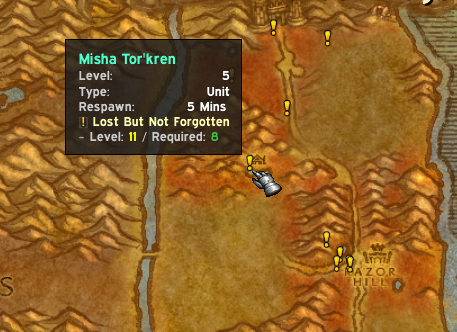
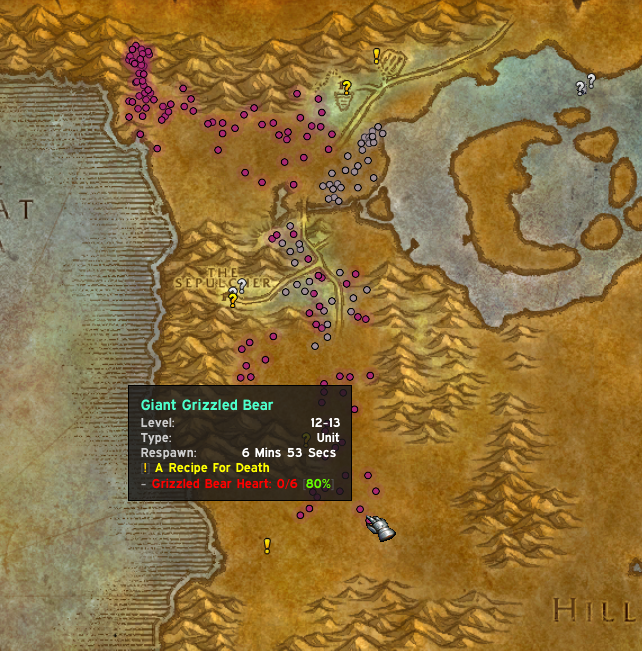
Quest objectives, spawn points, and points of interest are plotted directly on the world map and minimap. The directional arrow (top left) points toward your nearest active objective and updates as you move. Nodes are color-coded by type and quest state — available quests, objectives in progress, and turn-in locations each use distinct icons.
Auto-Tracking
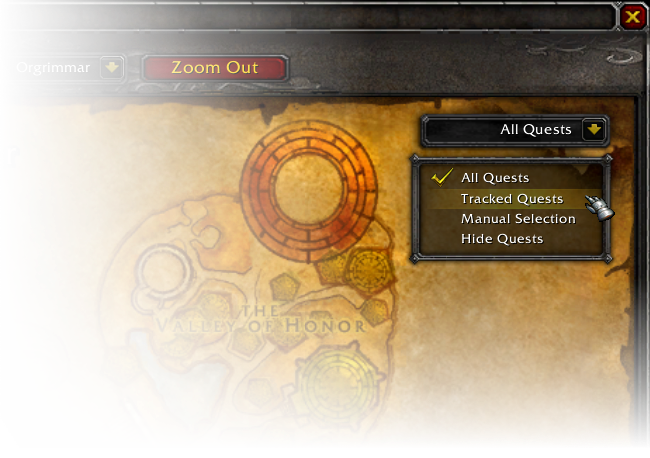
pfQuest supports four tracking modes that control how quest objectives are shown on the map. The active mode is selected from the dropdown menu in the top-right corner of the world map.
All Quests
Every quest in your log is automatically shown and updated on the map. This is the default mode.
Tracked Quests
Only quests you have manually tracked via Shift-Click in the questlog are shown and updated.
Manual Selection
Only quests you have explicitly shown using the Show button in the questlog are displayed. Completed objectives are still automatically removed from the map.
Hide Quests
Same as Manual Selection, but quest givers are also hidden and completed objectives remain on the map. This mode makes no changes to existing map nodes.
Database Browser
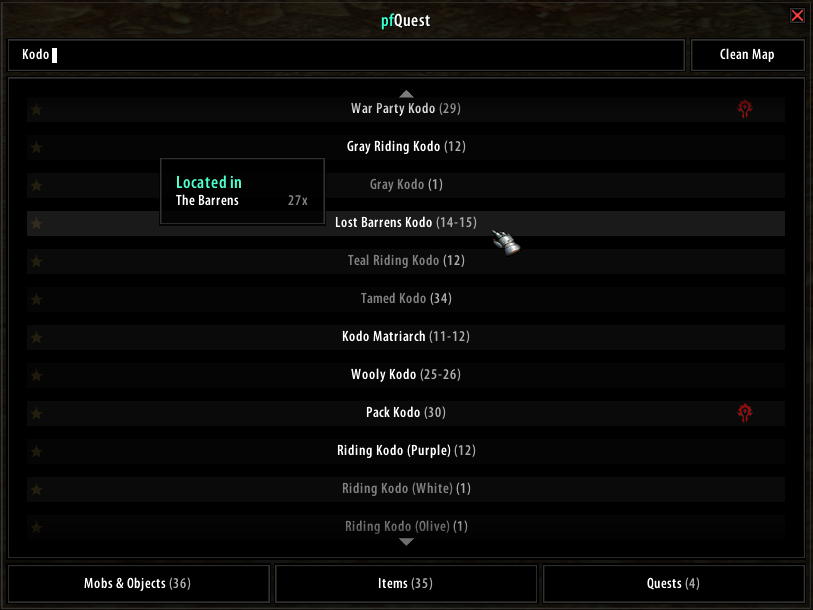
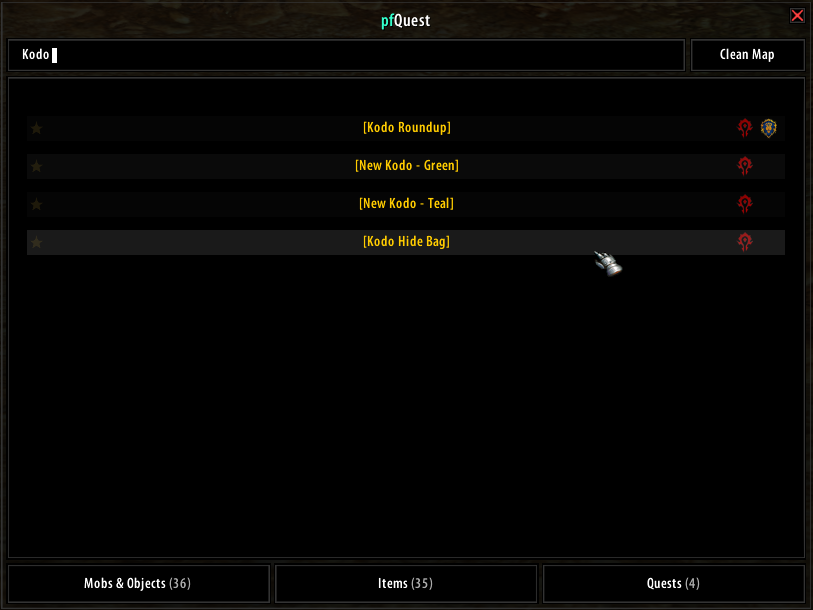
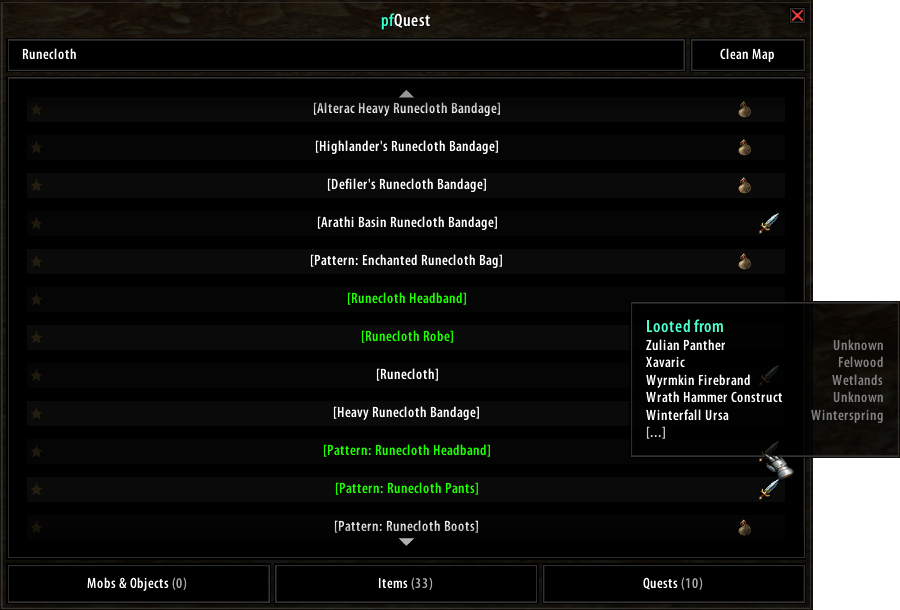
The database browser lets you search and bookmark units, game objects, items, and quests from the full pfQuest database. Open it by clicking the pfQuest minimap icon or with /db show. Each tab shows up to 100 results — use the scroll wheel or the up/down arrows to navigate. If an entry is marked with [?], that object or unit is not currently available on your realm.
Questlog Integration
Questlinks
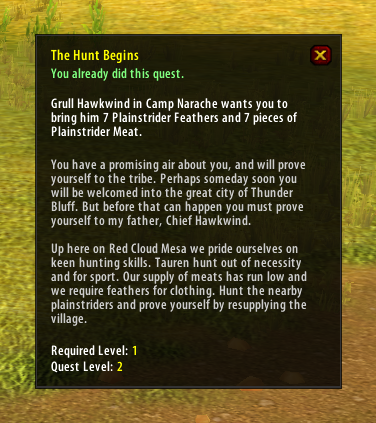
On servers that support questlinks, Shift-clicking a selected quest in the questlog inserts a clickable questlink into chat. These links are compatible with those produced by ShaguQuest, Questie, and QuestLink. Links sent between pfQuest users are locale-independent and use the Quest ID directly.
Some servers (e.g. Kronos) block questlinks entirely. In that case, disable the questlink feature in the pfQuest settings and the quest name will be inserted as plain text instead.
Hovering a questlink displays a tooltip showing your current progress, the objective text, the full quest description, the suggested level, and the minimum required level.
Questlog Buttons
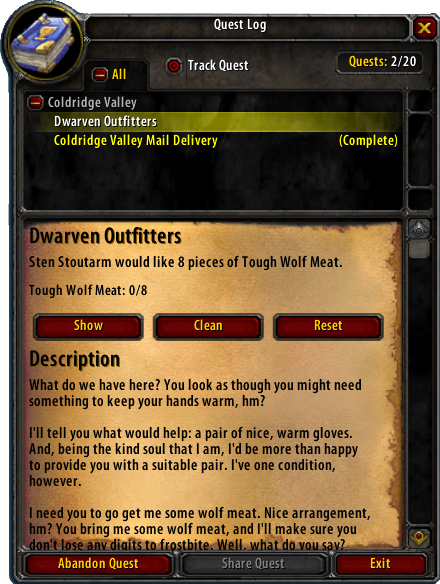
Each quest in the questlog has four additional buttons for manual map control. These buttons only affect nodes placed by pfQuest's quest tracking — they do not touch anything you have placed manually through the database browser.
Show — Adds the quest objectives for the selected quest to the map.
Hide — Removes the selected quest from the map.
Clean — Removes all nodes placed by pfQuest from the map.
Reset — Restores the default node visibility to match the current auto-tracking mode (e.g. re-shows all quests if the mode is set to "All Quests").
Chat / Macro CLI
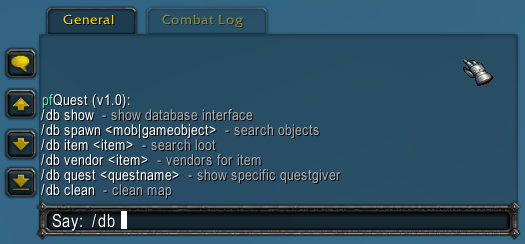
All pfQuest features are accessible from chat or macros using /db. For example, /db object Iron Deposit plots all Iron Deposit locations on the map, and /db track mines 150 225 shows only mines that require a Mining skill between 150 and 225. The commands /shagu, /pfquest, and /pfdb are all aliases for /db.
General
/db lock                Lock/unlock the map tracker position
/db tracker             Show the map tracker
/db journal             Show the quest journal
/db arrow               Toggle the quest arrow
/db show                Open the database browser
/db config              Open the settings panel
/db locale              Display the active addon locales
/db scan                Scan the server for custom items
/db debug               Toggle debug output
Questing
/db reset               Reload all quest nodes on the map
/db query               Query the server for completed quests
/db clean               Remove all database search results from the map
Database Search
/db unit <name>         Find spawn locations for a unit (e.g. Thrall)
/db object <name>       Find locations for a game object (e.g. Iron Deposit)
/db item <name>         Find units and objects that drop an item (e.g. Runecloth)
/db vendor <name>       Find vendors that sell a specific item (e.g. Jagged Arrow)
/db quest <name>        Search for a quest by name
Tracking Lists
Tracking lists let you pin all instances of a category on the map at once.
/db track               Show all available tracking lists
/db track clean         Remove all tracked list nodes from the map
/db track <list>        Show all objects in <list> on the map
/db track <list> clean  Remove all objects in <list> from the map
The mines and herbs lists support an optional skill range and an auto shortcut that uses your current skill level:
/db track mines         Show all mines
/db track mines auto    Show mines within your current skill range
/db track mines 50 150  Show mines requiring skill 50–150
/db track mines clean   Remove all mine nodes from the map
Available tracking lists: auctioneer, banker, battlemaster, chests, fish, flight, herbs, innkeeper, mailbox, meetingstone, mines, rares, repair, spirithealer, stablemaster, vendor